
Multi-Speaker Text to Speech

Turn your script into a conversation with up to four voices for podcasts, stories and lessons.

One script. A voice for every part.

Podcasts, story scenes and practice conversations depend on who says each line. Giving the roles distinct voices turns a written exchange into audio that listeners can follow from one speaker to the next.

Give your podcast two perspectives

Give your podcast two perspectives

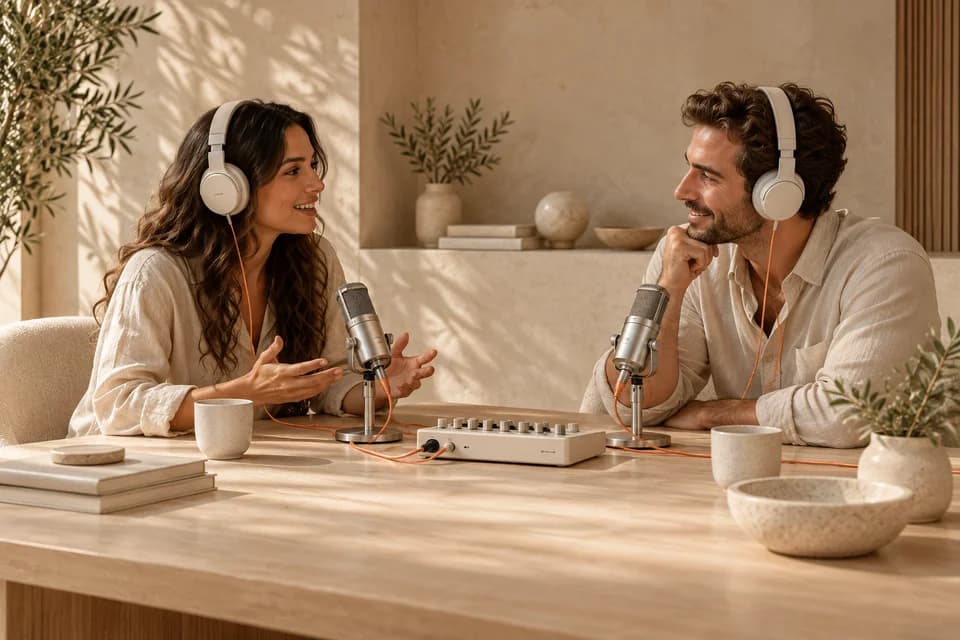
A producer is preparing a scripted discussion between a host and a guest. Separate voices distinguish the questions from the answers as the conversation develops. The ordered dialogue becomes one audio file for the episode, giving listeners two perspectives without relying on repeated spoken introductions.


Let the narrator set the scene

Let the narrator set the scene

A story scene moves between a narrator and two characters. The narrator establishes the setting, while each character has a distinct voice for their dialogue. Arranging those lines in story order creates a passage in which listeners can follow both the action and the changes of speaker.

Turn a lesson into a conversation

Turn a lesson into a conversation

A language teacher is preparing a café conversation for a listening lesson. A customer and a server each have their own voice, making the questions and replies easier to follow. The complete exchange can accompany a worksheet, so learners hear how the individual phrases fit into a conversation.

Rehearse the moments that matter

Rehearse the moments that matter

A trainer wants to demonstrate a conversation between a customer and a support agent. Assigning a voice to each role makes the request and response clear in the audio. The exchange can accompany a training slide or discussion exercise about how the team handles that situation.

From written dialogue to one audio file

  1. Choose your cast

    Open voicv.com, sign in and choose Multi-Speaker Text to Speech. Add one to four speakers, name them and select a saved voice compatible with your chosen model. Starting with two speakers and a short exchange makes it easier to check the voices before writing a longer script.

  2. Arrange the conversation

    Write a line for each speaker or import existing text. Split the import by paragraphs or a custom separator, preview the result and assign the speakers. Move lines into the order you want, then check that every speaker has a voice and at least one line.

  3. Listen and download

    Choose V3, V4 or V5, set the speed and volume, and select MP3, WAV or Opus. Review the displayed Credits before generating. When the audio is ready, listen to the whole conversation and download it. If a line needs work, edit the script and generate another version.

Arrange voices and lines in one dialogue

Give each role its own voice

Assign saved, compatible voices to up to four roles in one script. Each line belongs to a named speaker, so narrators, hosts and characters remain easy to distinguish as you build the conversation and arrange their turns.

Edit the conversation and its delivery

Write or import lines, change their speakers and move them into order. Set the generation speed and volume, with expression tags where the model supports them, to shape both the exchange and how it is spoken.

Export the dialogue as one recording

Generate the lines in script order as a single MP3, WAV or Opus file. The complete conversation can be played and downloaded for a programme, lesson or later editing, with previous results available from dialogue history.

Before you give your script a voice

How many speakers can I add?

Use one to four speakers in a single dialogue. Each needs a name, a valid saved voice and at least one non-empty line. You can write a two-person exchange or add a narrator and more characters. Remove unused speakers before generating, and check the speaker assigned to each line.

Can I import a script I have already written?

Yes. Paste your text into the import dialog, split it by paragraphs or a custom separator, and preview the resulting lines. Assign the speakers before inserting the dialogue, then adjust the order in the editor. Import organizes your text; it does not automatically write a script or identify the characters for you.

Which audio formats can I download?

Choose MP3, WAV or Opus before generating. The result contains the whole dialogue in the order of your script. It does not include a separate audio track for each character. If you need further mixing or video editing, download the combined file and continue in your preferred editor.

How are Credits calculated?

The quote depends on your model and the script’s UTF-8 byte length. V3 and V4 use 1.5 Credits per byte; V5 uses 5. Speaker tags count toward the total, which is rounded up to a whole Credit. Review the live quote after changing the text or model; a byte is not the same as a character.

How long can my dialogue be?

Free accounts can submit up to 15,000 UTF-8 bytes per dialogue; paid plans allow up to 30,000. These limits include the speaker tags used for generation. Different writing systems use different numbers of bytes, so use the editor’s byte counter rather than a word count. Split a longer script into separate scenes when needed.

Can I use my own saved voices?

Yes. Sign in and select a saved voice for each speaker. The voice must be compatible with V3, V4 or V5, depending on the model you choose. If a voice is unavailable, check the selected model and your voice library. The dialogue page assigns existing voices; creating or cloning a voice is a separate step.

Where can I find my script and previous audio?

The editor keeps a local draft for your signed-in account in this browser. Generated tasks appear in your dialogue history, where you can revisit results and return to editing. A local draft is not a promise of cross-device synchronization. Keep your own copy of important scripts, especially before clearing browser storage or changing devices.

Do I need to sign in before starting?

You can view the editor and these examples without an account session. Sign in to select your saved voices and generate audio. For a longer project, sign in before writing: text entered while signed out is not guaranteed to carry over after login. Once signed in, begin with a short sample to check the casting and pace.

Start with two voices and a few lines

Choose your speakers, write their first exchange and hear how the conversation flows. Your next podcast segment, story scene or listening exercise starts with the script.

Create a dialogue